How to Build Your PC Online: A Guide to the Netcodex PC Builder
Latest update, November 4, 2026: this guide is new. It covers everything in our PC Builder, from picking parts yourself to the checks, the fit drawing and the power estimate. See What’s new in the PC Builder for changes as we add them.
Our PC Builder lets you put a PC together part by part and checks, as you go, that everything works together: the socket, the memory, whether the graphics card and cooler fit the case, and whether the power supply is big enough. You see the total at today’s prices, how the budget splits, what the PC is good for, and even about how much it adds to your electric bill. It’s free, and every build is checked by our builders before assembly.
Would you rather let AI pick the parts? The same page has two AI options: the AI Build Assistant form and Dex, our AI Build Assistant you can chat with. This guide is about everything else, and it grows as we add features.
Two ways to start
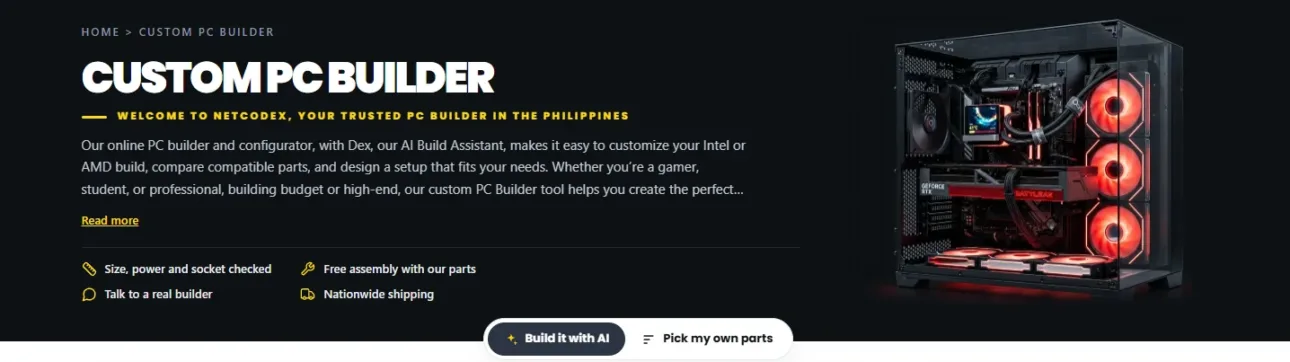
At the top of the PC Builder you choose Build it with AI or Pick my own parts. You can switch any time: an AI build lands in the same builder, so you can change any part it picked.
Pick your own parts
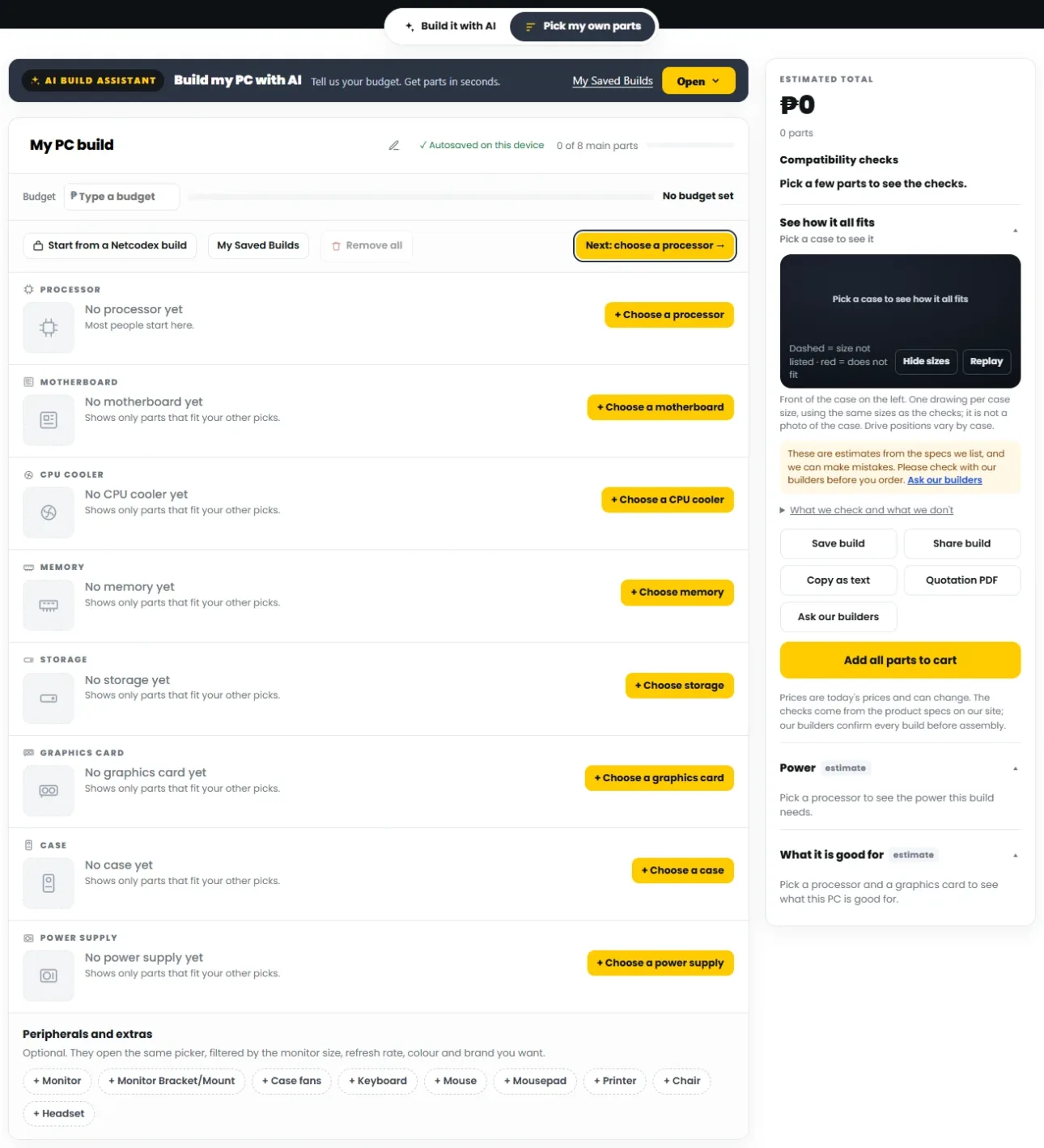
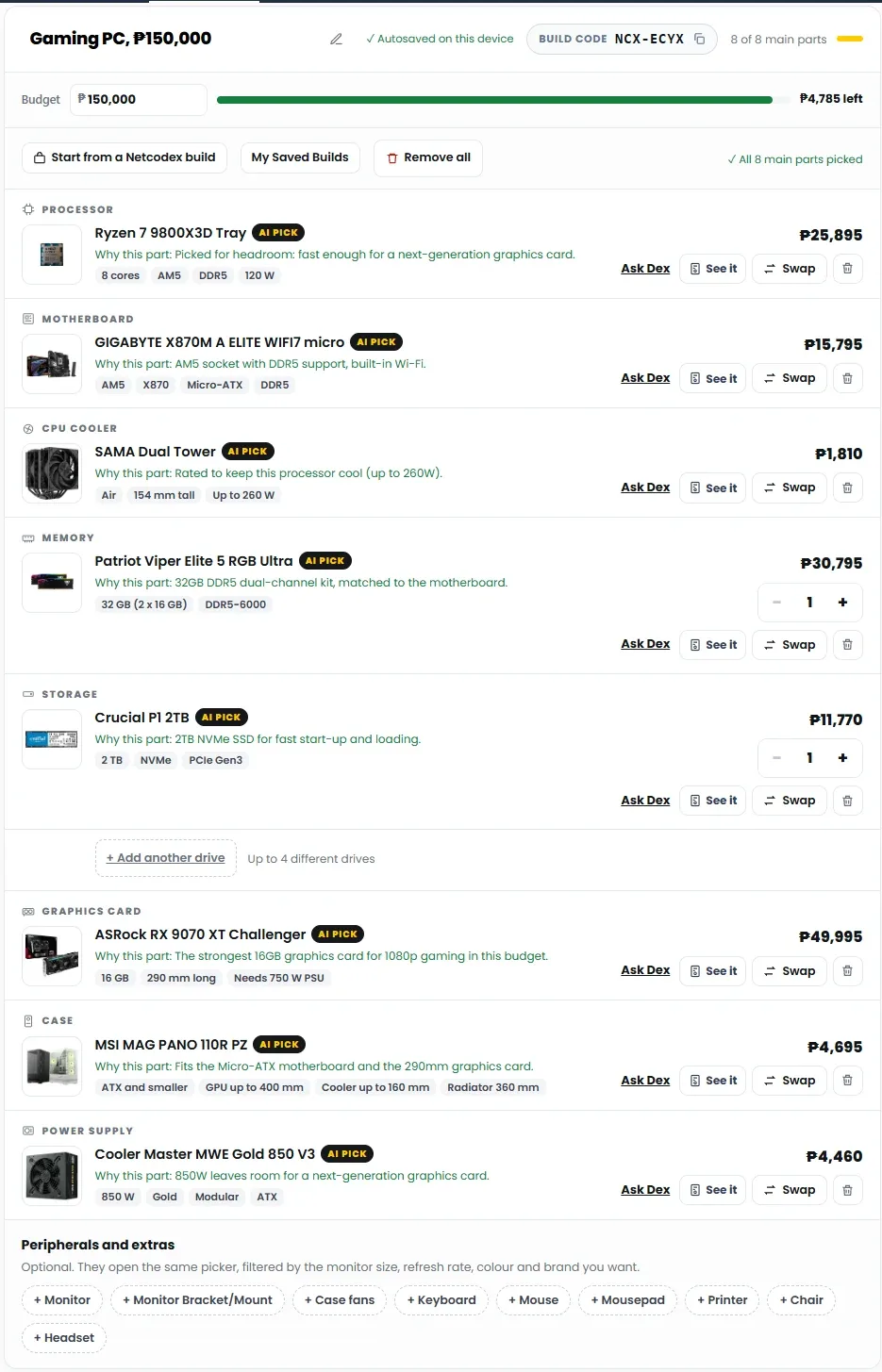
Each part has its own row: processor, motherboard, CPU cooler, memory, storage, graphics card, case and power supply. Tap Choose on a row, or follow the yellow Next button, which takes you through the parts in order. Each list only shows parts that fit what you have already picked.
- Type a budget at the top and a bar shows how much is left as you add parts.
- Start from a Netcodex build loads one of our PC packages as a starting point, so you only change what you want.
- Your build is saved as you go, and My Saved Builds keeps builds to come back to.
- Monitors, keyboards, mice, headsets, chairs and other extras open the same picker, filtered by things like screen size, refresh rate, colour and brand.
Find the right part in the picker
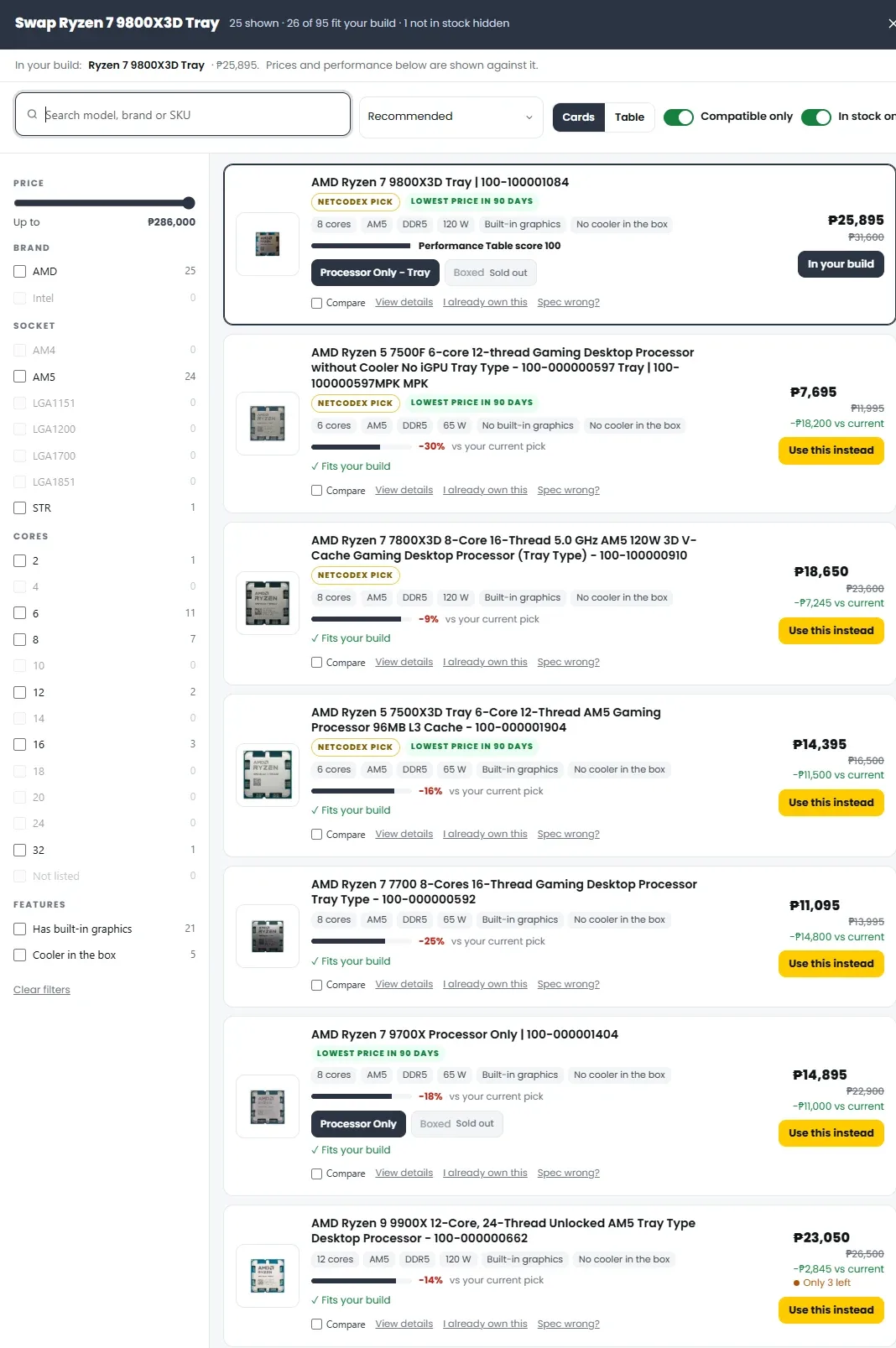
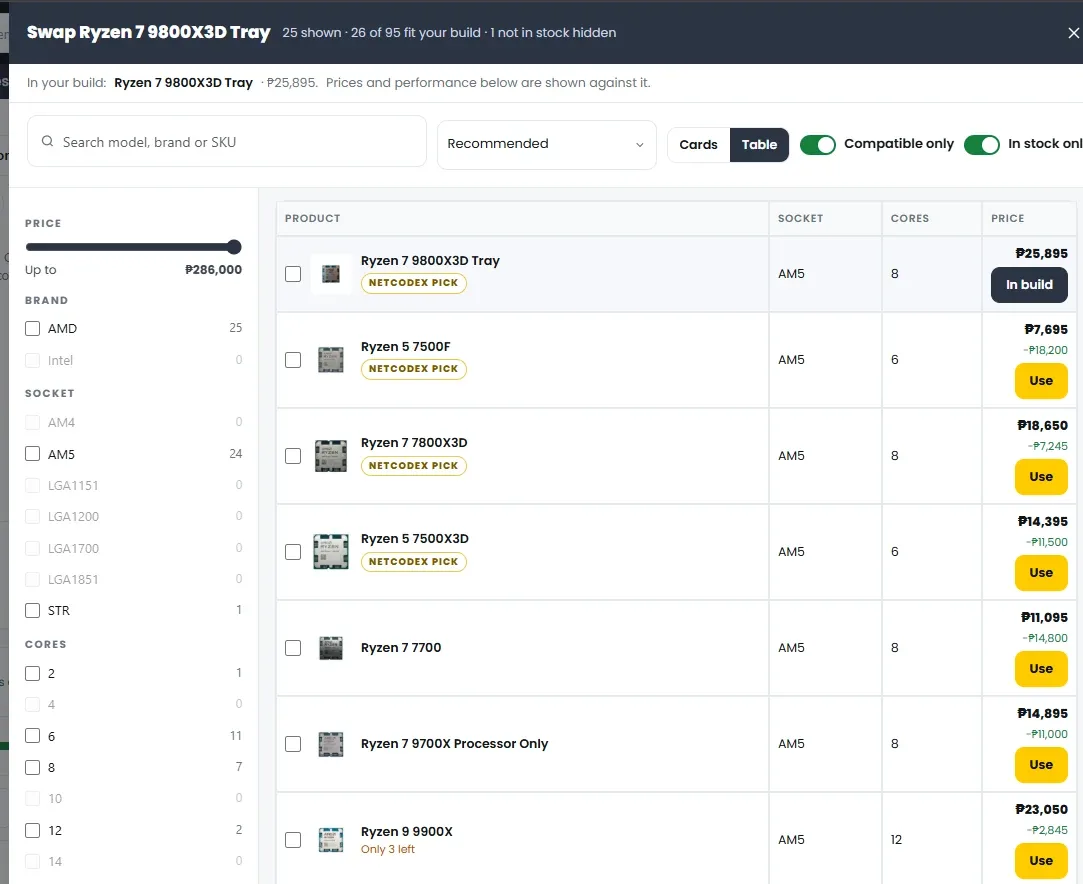
The picker helps you compare before you choose:
- Filters for price, brand, socket, cores and features, and a sort menu (Recommended first by default).
- Compatible only is on by default, so you only see parts that fit your build. Another switch hides parts that cannot be ordered right now.
- Every card shows the key specs, a performance bar and how much more or less it costs than the part in your build. Netcodex pick marks parts our builders like, and Lowest price in 90 days marks a good time to buy.
- Switch between Cards and a compact Table, tick Compare to see parts side by side, or open View details.
- I already own this tells the builder you already have that part.
- See a spec that looks wrong? Tap Spec wrong? and our team takes a look.
Your build at a glance
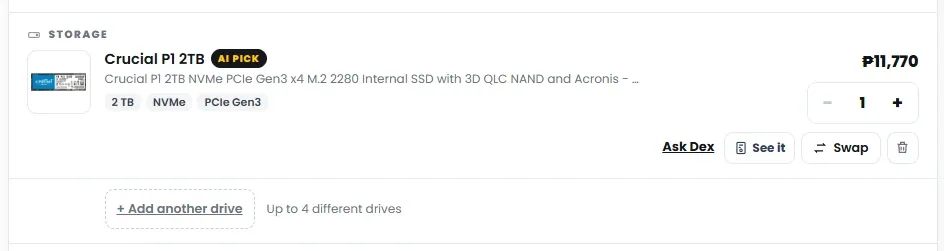
Every part shows its main specs, a Why this part line when AI picked it, and buttons to Ask Dex about it, Swap it or remove it. Memory and storage have a quantity, and Add another drive lets you add up to four different drives.
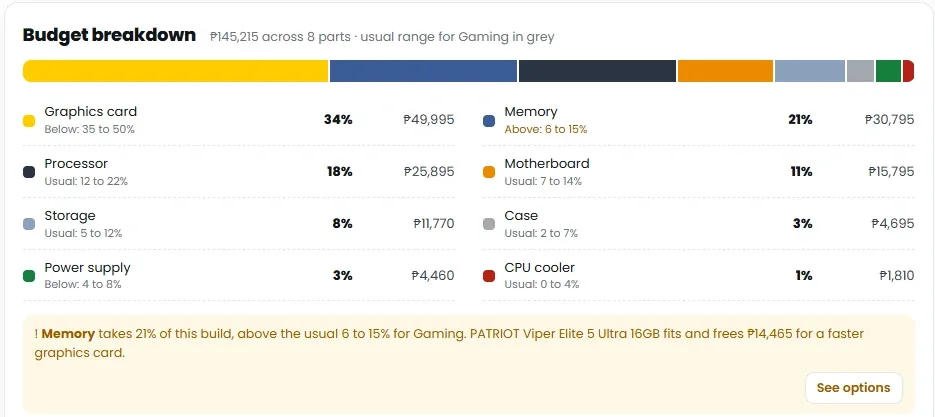
Budget breakdown shows how your money splits across the parts, next to the usual range for what the PC is for. If one part takes much more than usual, it says so and suggests options.
Compatibility checks
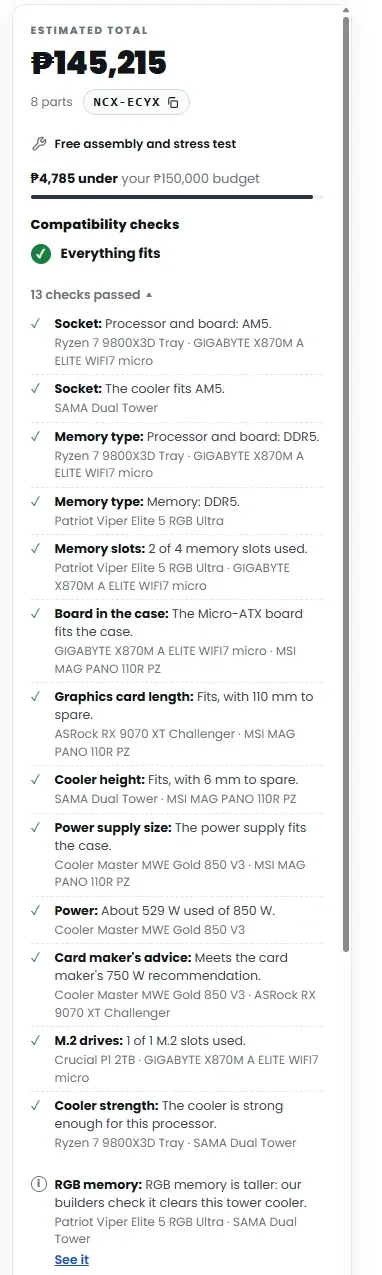
The summary on the right keeps a running total and tells you at a glance whether everything fits. Open the list to see every check and which parts it compared:
- processor and motherboard socket, and the cooler’s socket
- memory type and memory slots
- motherboard size against the case
- graphics card length and cooler height against the case
- power supply size, and the build’s power against the power supply
- the graphics card maker’s power supply advice
- M.2 slots for your drives, and whether the cooler is strong enough for the processor
Things worth a second look, like tall RGB memory under a big tower cooler, show as notes for our builders to confirm. What we check and what we don’t explains the limits.
See how it all fits
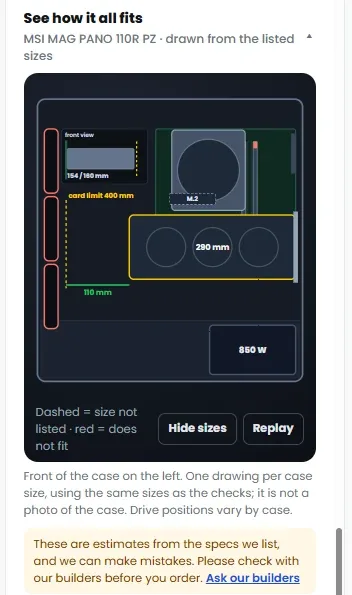
Pick a case and the builder draws it from the front, with your graphics card, cooler, power supply and drives at their listed sizes. Dashed lines mean a size is not listed, and red means something does not fit. It is a drawing from the specs, not a photo of the case.
Power and electricity
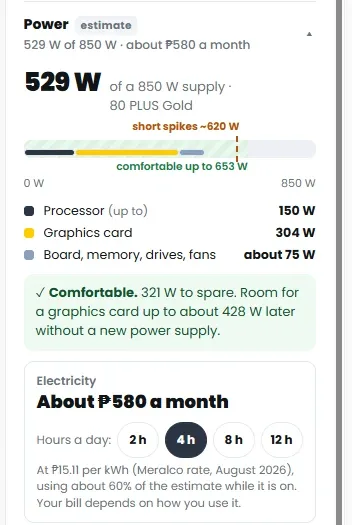
The Power card estimates what the build draws, its short spikes, and how much room the power supply leaves for a bigger graphics card later. Electricity turns that into an estimate of the monthly cost, using a Meralco rate and the hours a day you pick.
What it is good for
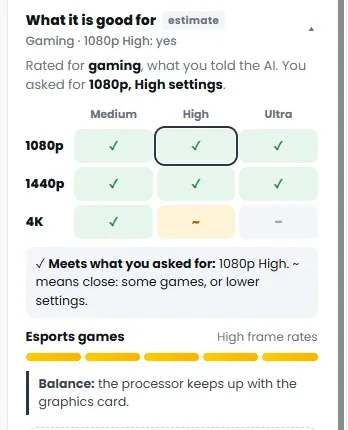
Once there is a processor and a graphics card, this card shows what the build can handle at 1080p, 1440p and 4K, at medium, high and ultra settings, a rating for esports games, and whether the processor keeps up with the graphics card. It comes from our performance table, so treat it as a guide and check benchmark reviews for the games and apps you use.
Save it, share it, or get a quotation
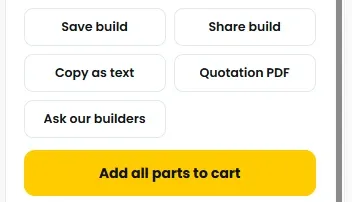
Every build gets a build code. Save build keeps it, Share build gives you a link, Copy as text copies the parts list, and Quotation PDF downloads a quotation. Ask our builders sends the build to our team for a second look. When you are ready, Add all parts to cart and check out as usual.
First PC? Go step by step
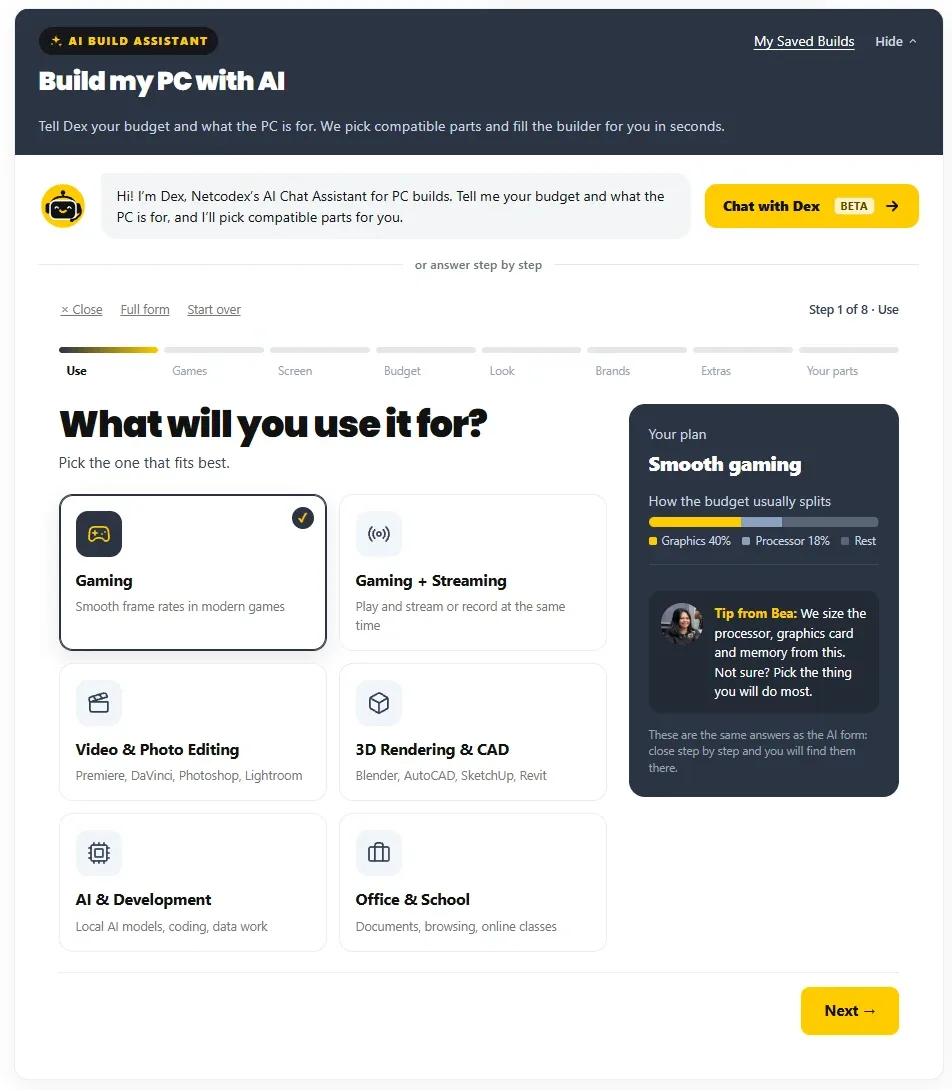
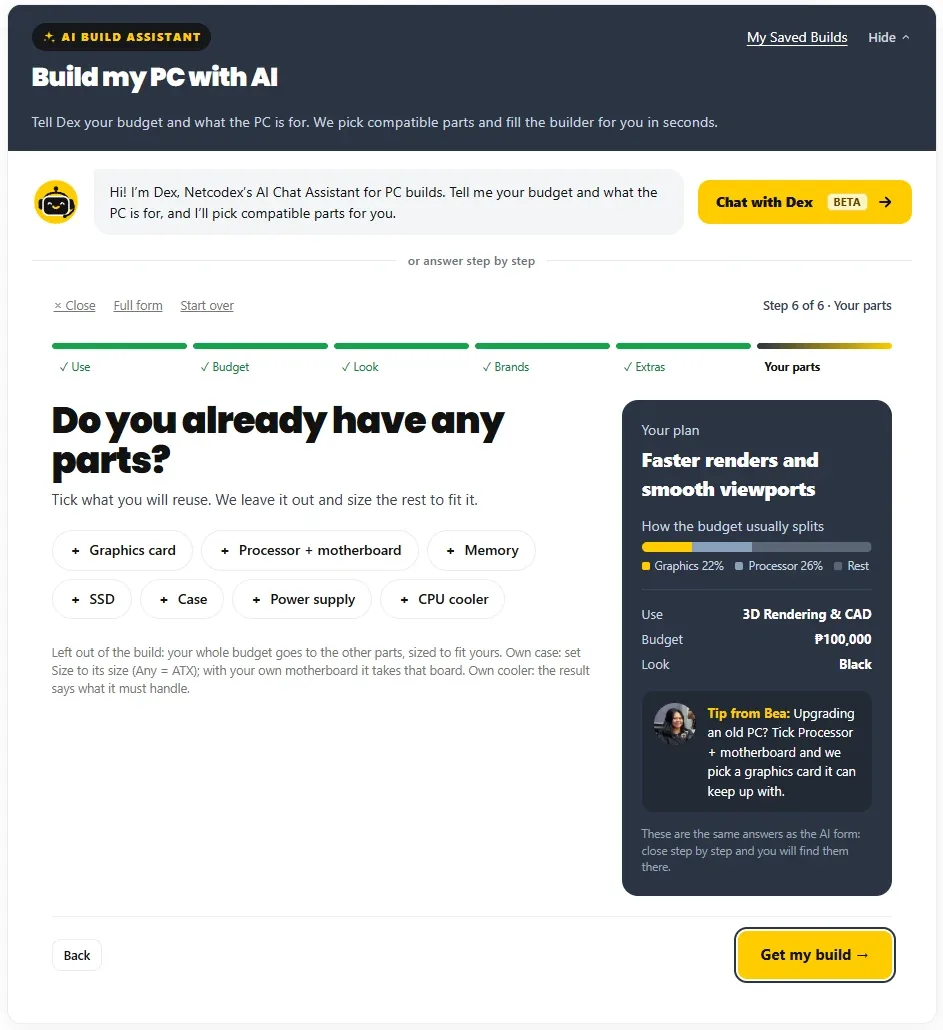
Tap First PC? Go step by step and the builder asks one easy question at a time: what the PC is for, your budget, the look, favourite brands, extras, and parts you already have. Tips from our team explain each choice in plain words, and the plan on the right shows how the budget usually splits. At the end, Get my build fills the builder.
Good to know
- The PC Builder is free to use.
- Prices are today’s prices and can change. A quotation is valid for up to 24 hours.
- The checks and estimates come from the product specs on our site. Our builders confirm every build before assembly, and you can always ask them first.
- Assembly, a stress test and photos of your finished PC before release are free when you buy the parts from us.
What’s new in the PC Builder
November 4, 2026
- This guide is published. It will grow as we add features.
October 31, 2026
- Dex, our AI Build Assistant you can chat with, joins the PC Builder. Meet Dex.
October 28, 2026: the new PC Builder
- Pick parts yourself with size, power and socket checks as you go.
- Step by step for first-time builders.
- Share your build or download a quotation PDF.
Questions about the PC Builder
Is the PC Builder free?
Yes. Picking parts, the checks, the estimates and the quotation PDF are all free.
Can I trust the compatibility checks?
They compare the specs we list for each part, and they catch the common problems: wrong socket or memory, a card or cooler too big for the case, a power supply that is too small. Our builders still check every build before assembly, and the notes tell you when something needs a second look.
Can I use parts I already have?
Yes. In the picker, tap I already own this, or tell the step-by-step guide which parts you will reuse.
Can AI pick the parts for me?
Yes. Use the AI Build Assistant form or chat with Dex. Either one fills the same builder, and you can change any part afterwards.
How do I order?
Tap Add all parts to cart and check out, or send the build to our builders first with Ask our builders.
This guide is updated as we add features to the PC Builder. Last updated November 4, 2026. Prices in the screenshots are as of November 4, 2026.